
Heartbeat Management Options
This allows you to control the lifecycle and configuration of your monitor. These actions, accessed via the ellipsis menu, let you edit core settings, manage alerts, handle performance statistics, and perform quick actions like duplication or pausing.
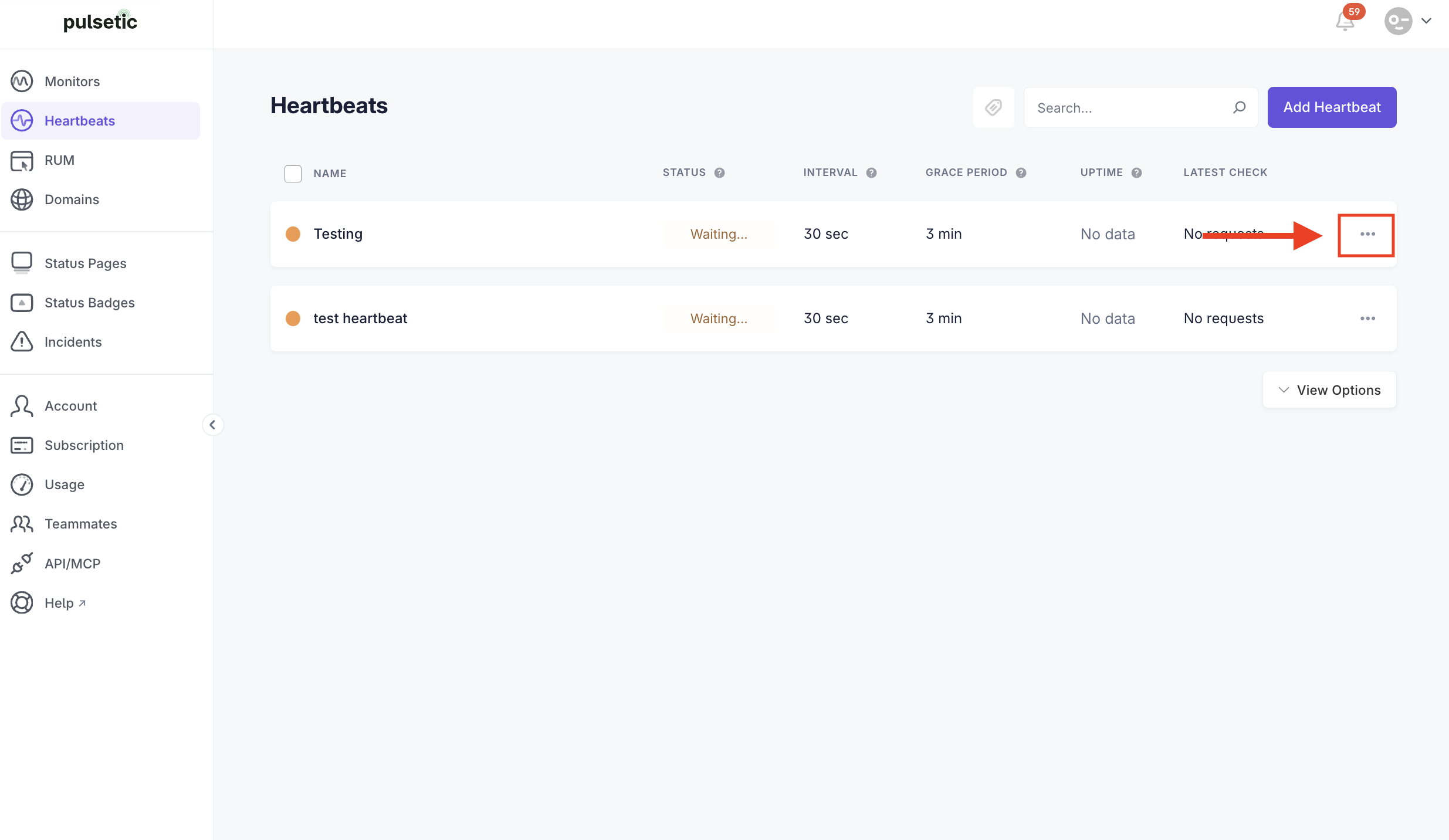
Step 1: Access the Management Menu
- Navigate to the Heartbeat page.
- Locate the Heartbeat you wish to manage.
- Click the ellipsis (three dots) next to the Heartbeat's name.
Step 2: Access Detailed Configuration Views
You can access the detailed configuration views to customize how your Heartbeat functions and communicates with your team.
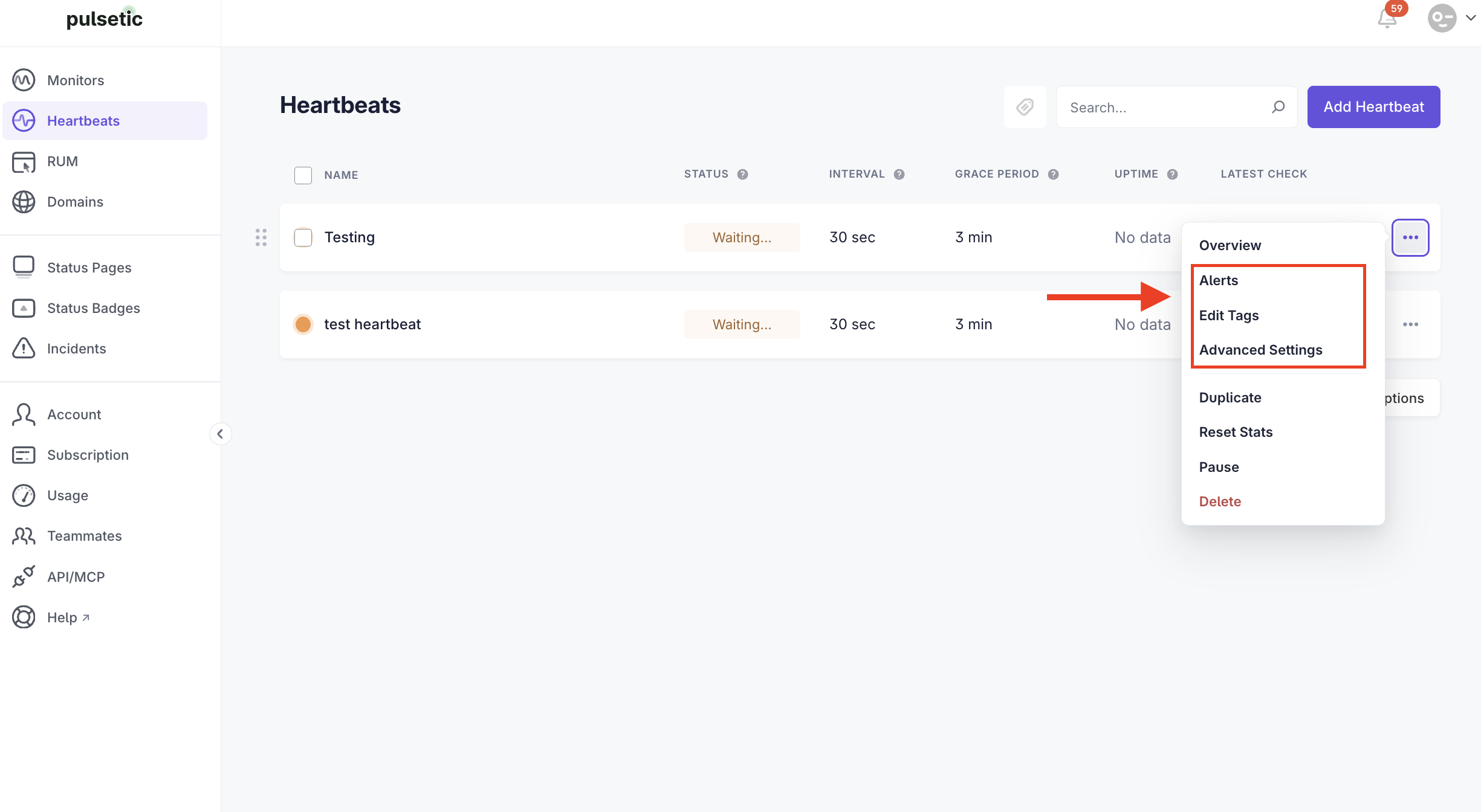
- Alerts:
- Select Alerts to manage or set up notification channels (SMS, Webhook, etc.) for this specific Heartbeat.
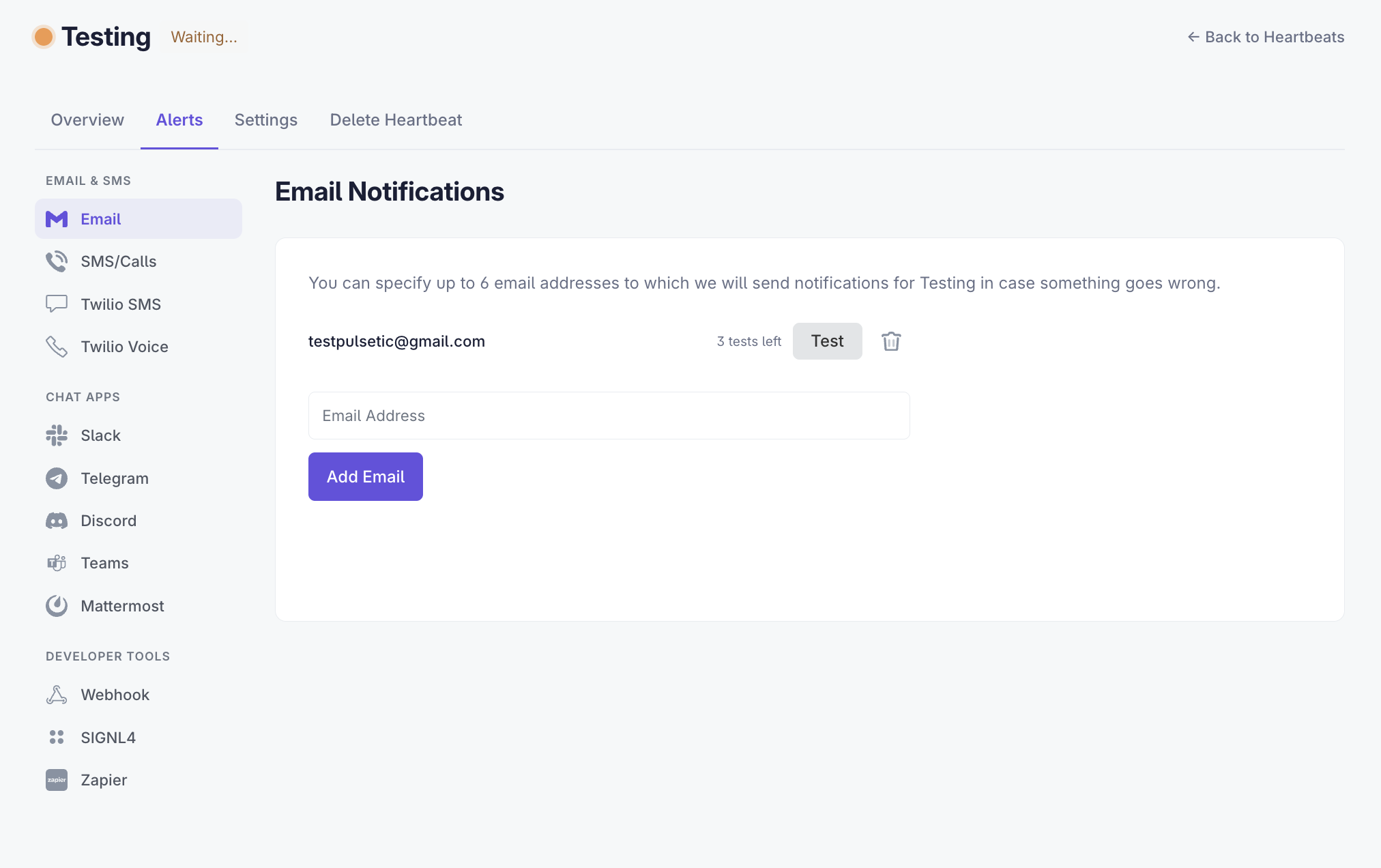
- Edit Tags:
- Select Edit Tags to manage the optional tags associated with the heartbeat.
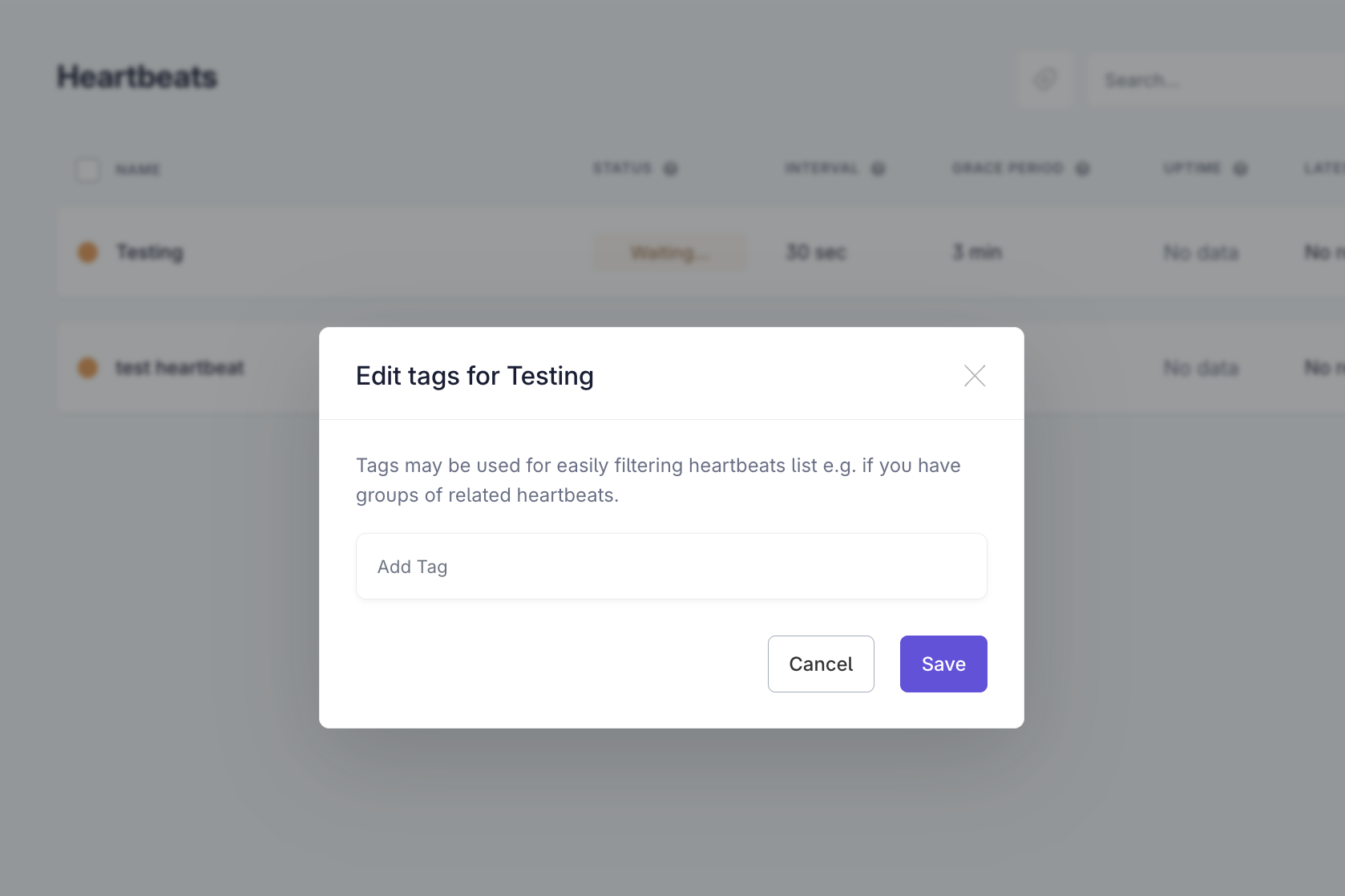
- Advanced Settings:
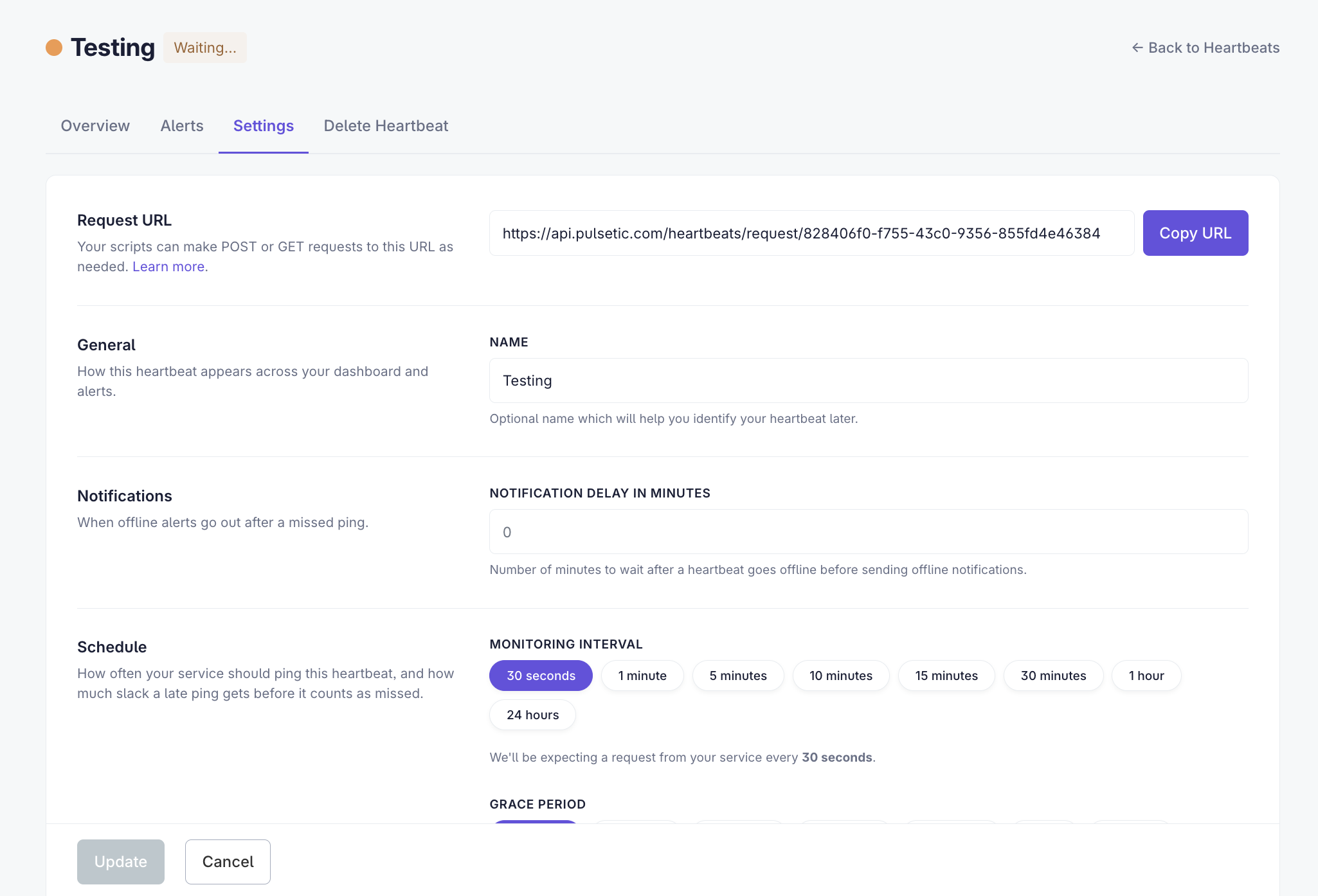
- Select Settings to edit the core configuration, including the Name, Notification Delay in Minutes, Monitoring Interval, and Grace Period.
Step 3: Utilize Quick Actions
- Duplicate:
- Click Duplicate to create an exact copy of the Heartbeat.
- Reset Stats:
- Click Reset Stats to clear the historical uptime and downtime statistics.
- Pause:
- Click Pause to temporarily stop checking for the heartbeat signal.
Step 4: Deleting the Heartbeat
There are two primary methods to permanently delete a Heartbeat:
- Quick Delete (via Ellipsis Menu)
- Click Delete from the quick actions menu. A confirmation pop-up will appear.
- Delete via Heartbeat Settings
- Navigate inside the Heartbeat settings.
- Select the Delete Heartbeat option.
- You will see a prompt warning you: "If you delete your heartbeat, we will stop checking your requests and remove all associated data. Be careful with this action. If you still want to proceed, type 'delete' in the input below."
- Type delete in the input field to confirm the permanent removal.