
How to Add Subscriber to Your Status Page
The Subscribers feature allows users to "follow" your status page. Instead of checking the page manually during an outage, they receive automated email alerts whenever there is an update to a monitor, incident, or maintenance event.
Adding New Subscribers
You can manually add users to your notification list (e.g., adding your internal team or a list of VIP clients).
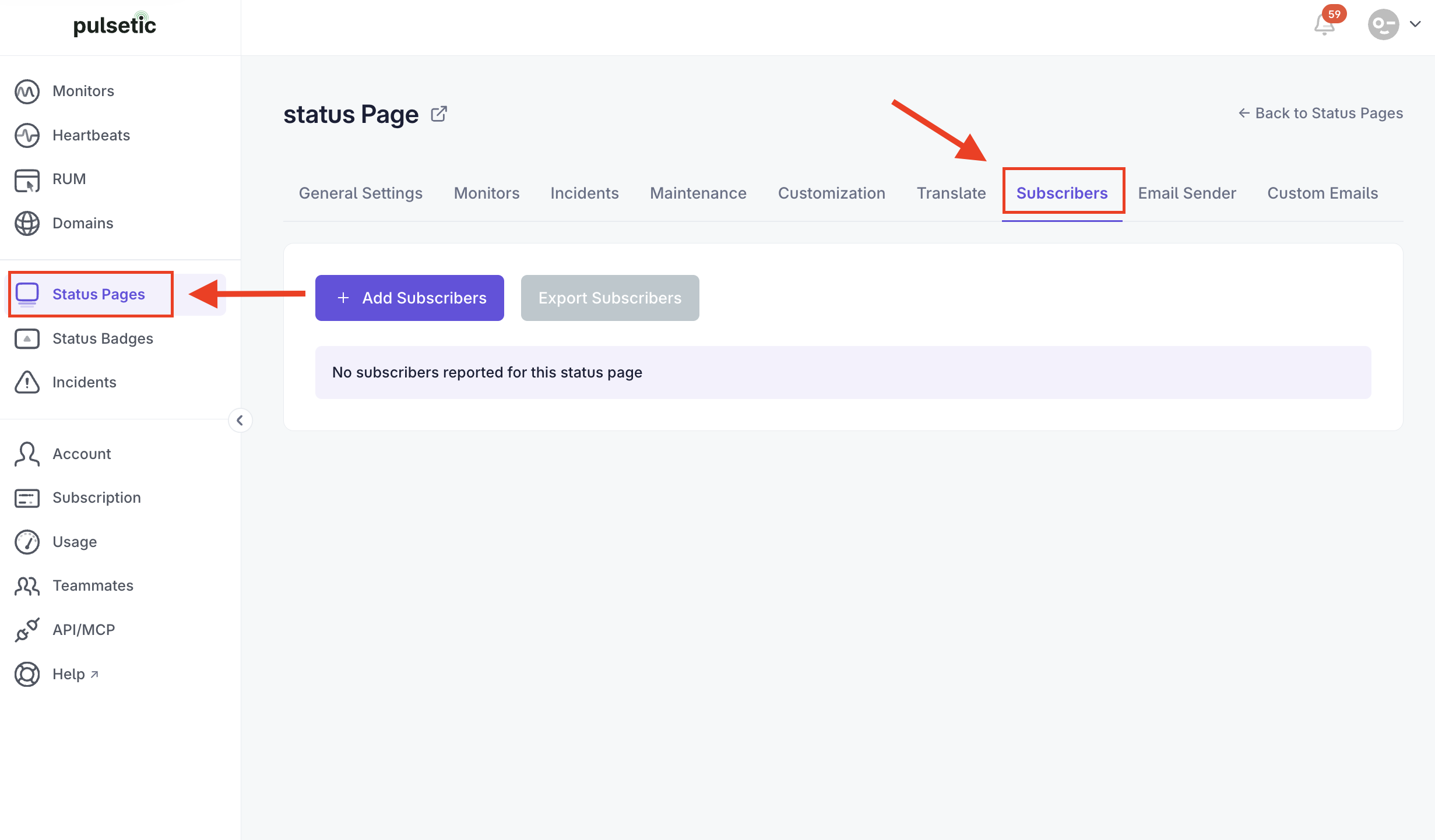
- Navigate to Status Pages,
- Click on the specific status page you wish to manage.
-
In the top horizontal menu, click the Subscribers tab.
-
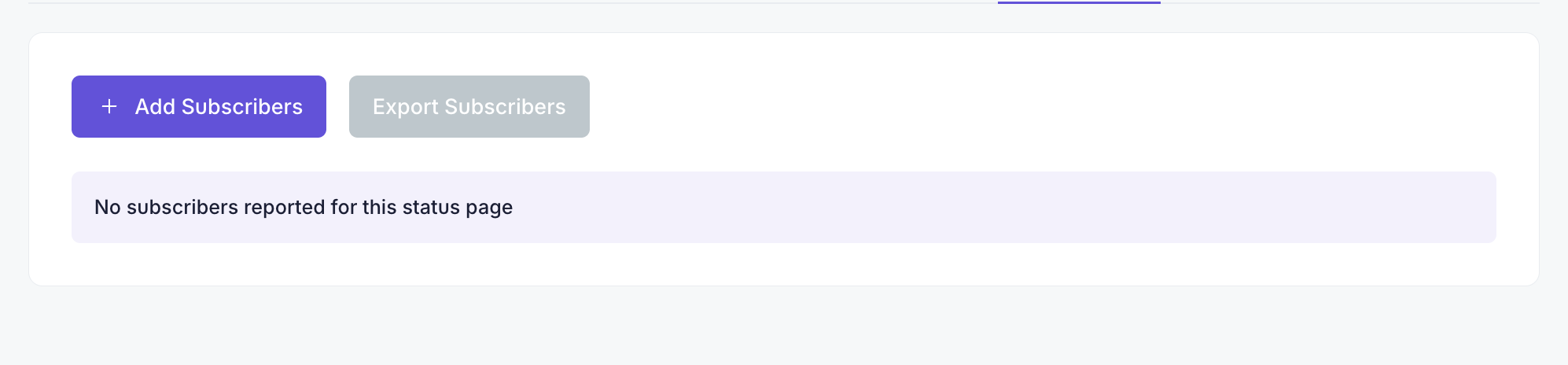
Click the Add Subscribers button.
- In the Emails field, type or paste the email addresses.
- Formatting: Separate multiple emails with a comma.
-
Limit: You can add up to 500 emails at once.
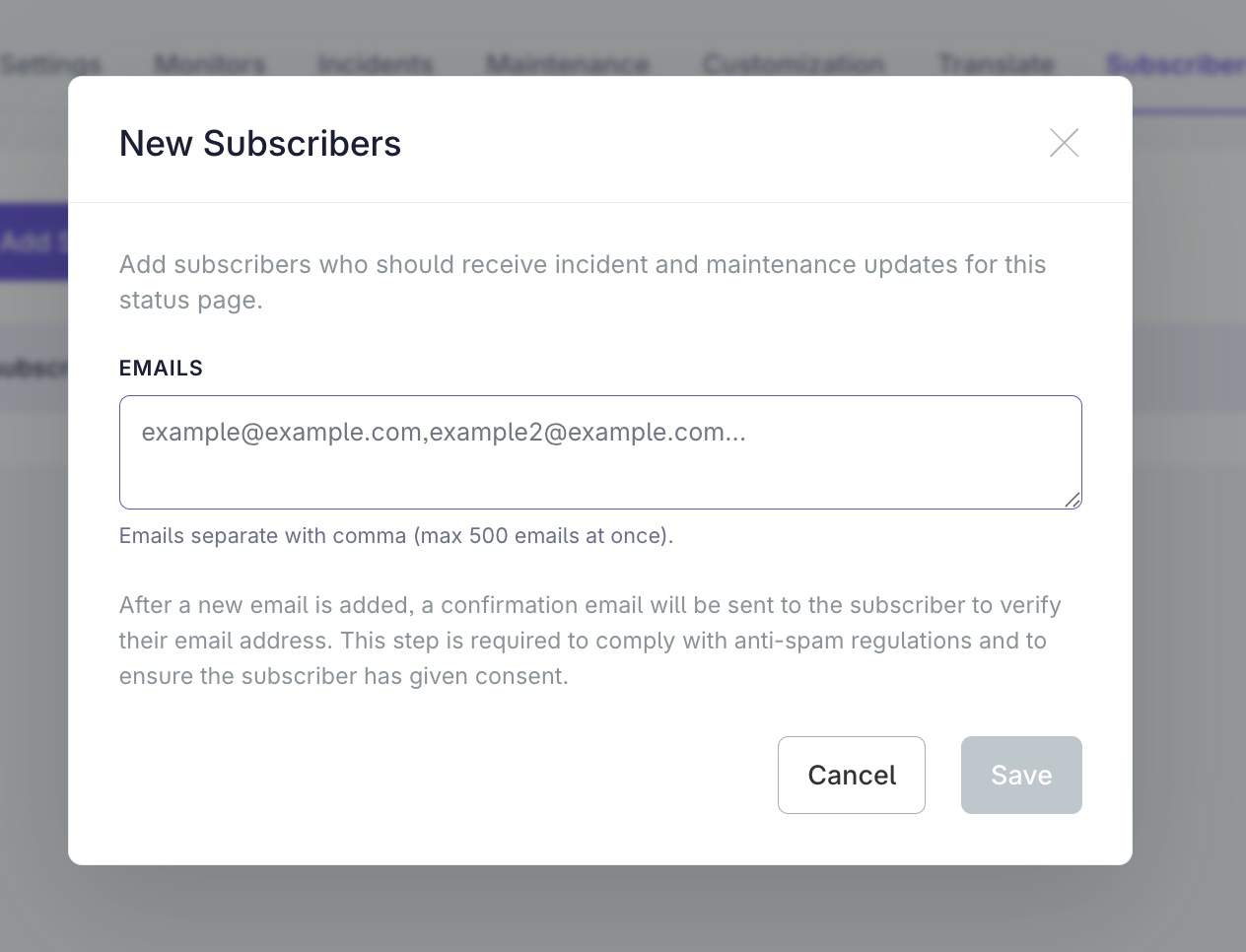
- Click Save.
Understanding the Verification Process
To comply with anti-spam regulations (GDPR/CAN-SPAM), Pulsetic requires subscribers to confirm their intent. This ensures that you only send alerts to users who actually want them.
- The Confirmation Email: As soon as you hit Save, Pulsetic sends a system-generated email to the recipients.
- User Action: The recipient must open this email and click the verification link.
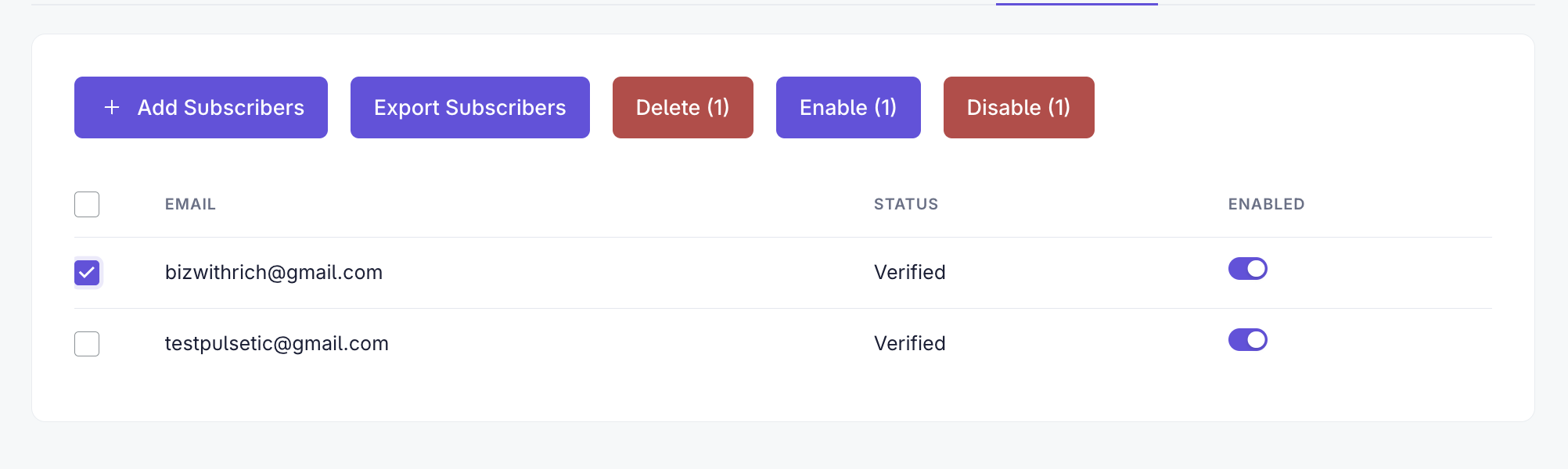
- Tracking Status: In your Subscribers list, you can monitor the Status column.
- Unverified: The user hasn't clicked the link yet. They will not receive incident alerts.
- Verified: The user has confirmed. They will receive all future automated alerts.

Removing Subscribers
You can remove specific users or bulk delete subscribers if they no longer need updates or if you want to clean up old, unverified accounts.
- Select Subscribers:
- Individual: Click the checkbox next to the specific email address you want to remove.
- Select All: Click the checkbox in the "Email" header column to select everyone on the list at once.
- Click the Delete button.
- A pop-up window will appear asking, "Are you sure you want to delete the selected subscribers?"
- Click Delete to permanently remove them from the list.
Exporting Subscribers
Exporting is useful for creating backups, auditing your active audience, or moving your data into a CRM.
- On the Subscribers page, locate the Export button.
- Click Export Subscribers to generate a CSV file.
- The file will download automatically, containing the email and status.
