
How to Integrate Pulsetic in n8n
Keeping your website online is a top priority for everyone in your company. For founders and project managers, unexpected downtime means lost sales and frustrated users. For developers, it means scrambling to find the bug and fix the server.
Pulsetic is a fantastic tool that watches your website and alerts you the moment something breaks. But what if those alerts could automatically trigger the exact technical fix or communication plan your team needs?
By connecting Pulsetic to n8n, a highly flexible automation platform, you can build systems that do exactly that. You can explore all the supported features and get started directly on the official Pulsetic integration page on n8n. Whether you write code every day or prefer visual drag-and-drop builders, n8n makes it incredibly easy to set up.
How to Set Up the Integration
When it is time to build your automated workflow in n8n, you get to choose your path. You can pick a simple visual setup or a fully custom API approach.
Option 1: The Community Node
If you want the fastest route without touching any code or reading API manuals, the community node is perfect for you.
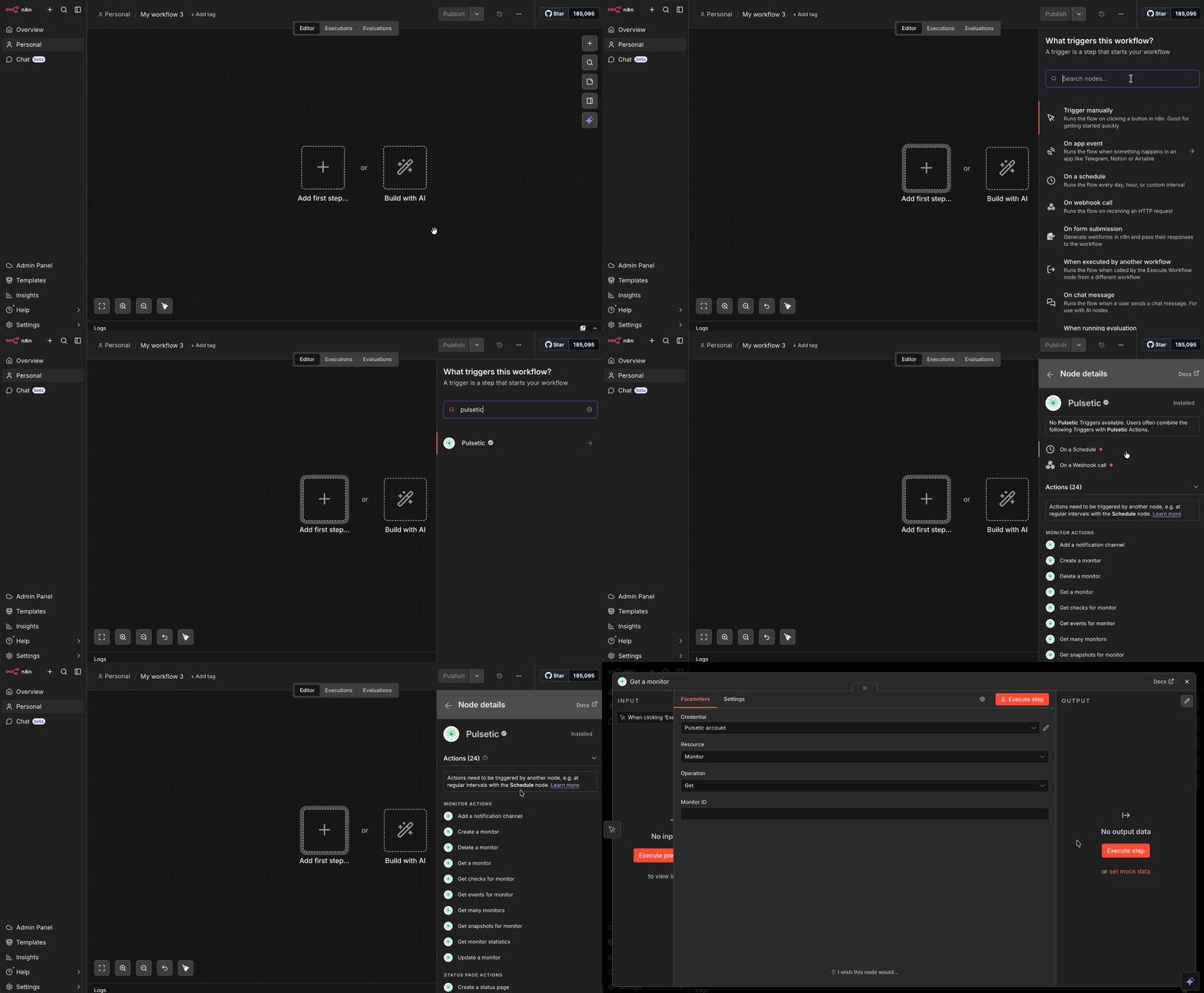
- Log in to your n8n account, open your workflow editor, and click the "+" button in the top right corner to bring up the Nodes panel.
- Type "Pulsetic" into the search bar. Find the version displaying the community badge and select install.
-
Once installed, search for "Pulsetic actions" to add the node to your canvas. Connect it to your workflow.
-
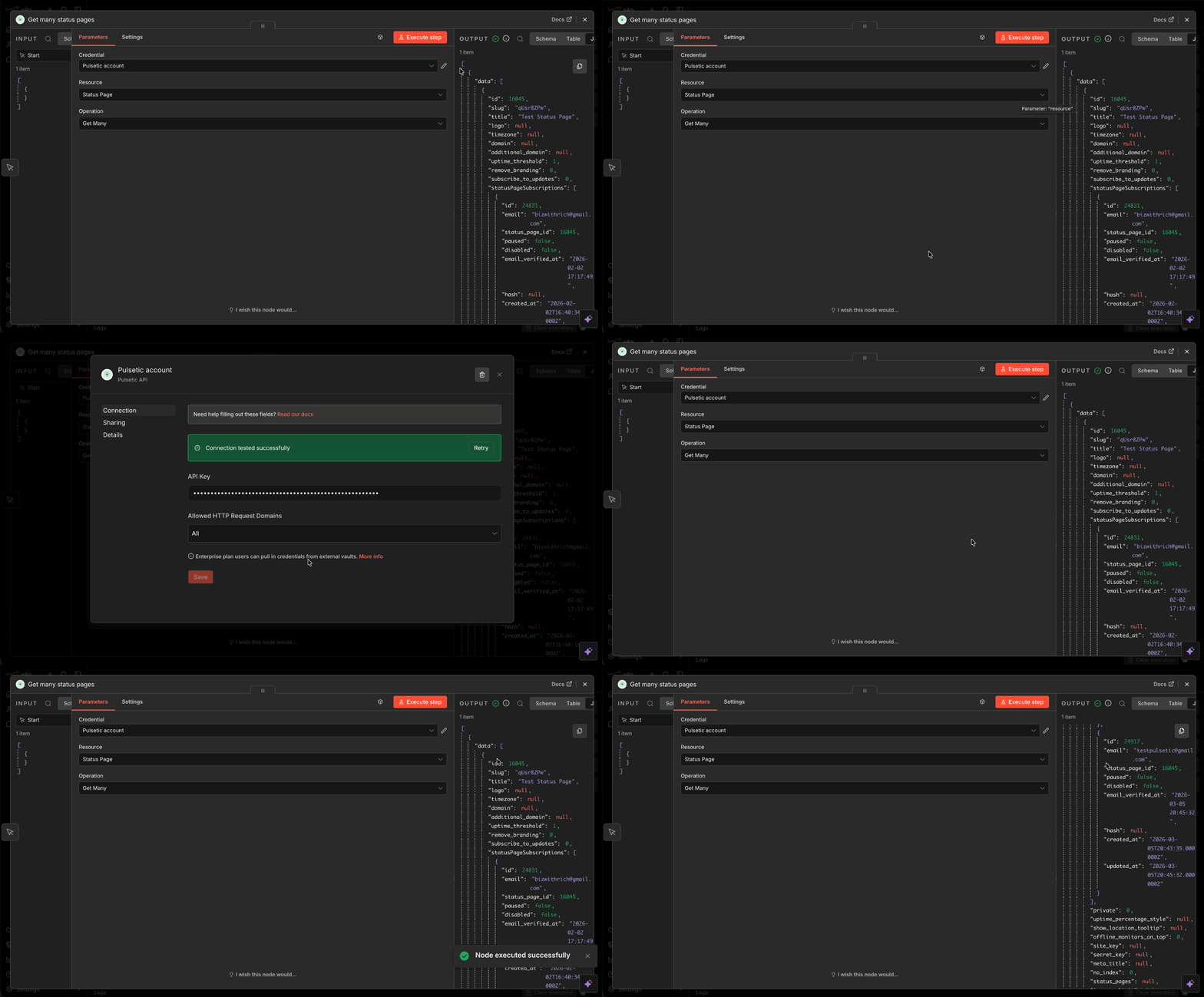
Then set the Parameters (including your API Key) and adjust the Settings to complete your setup.
Option 2: The HTTP Request Node
If you are an engineer who wants total control, or if you need to hit a very specific Pulsetic endpoint that is not in the community node, you will love the HTTP Request node.
-
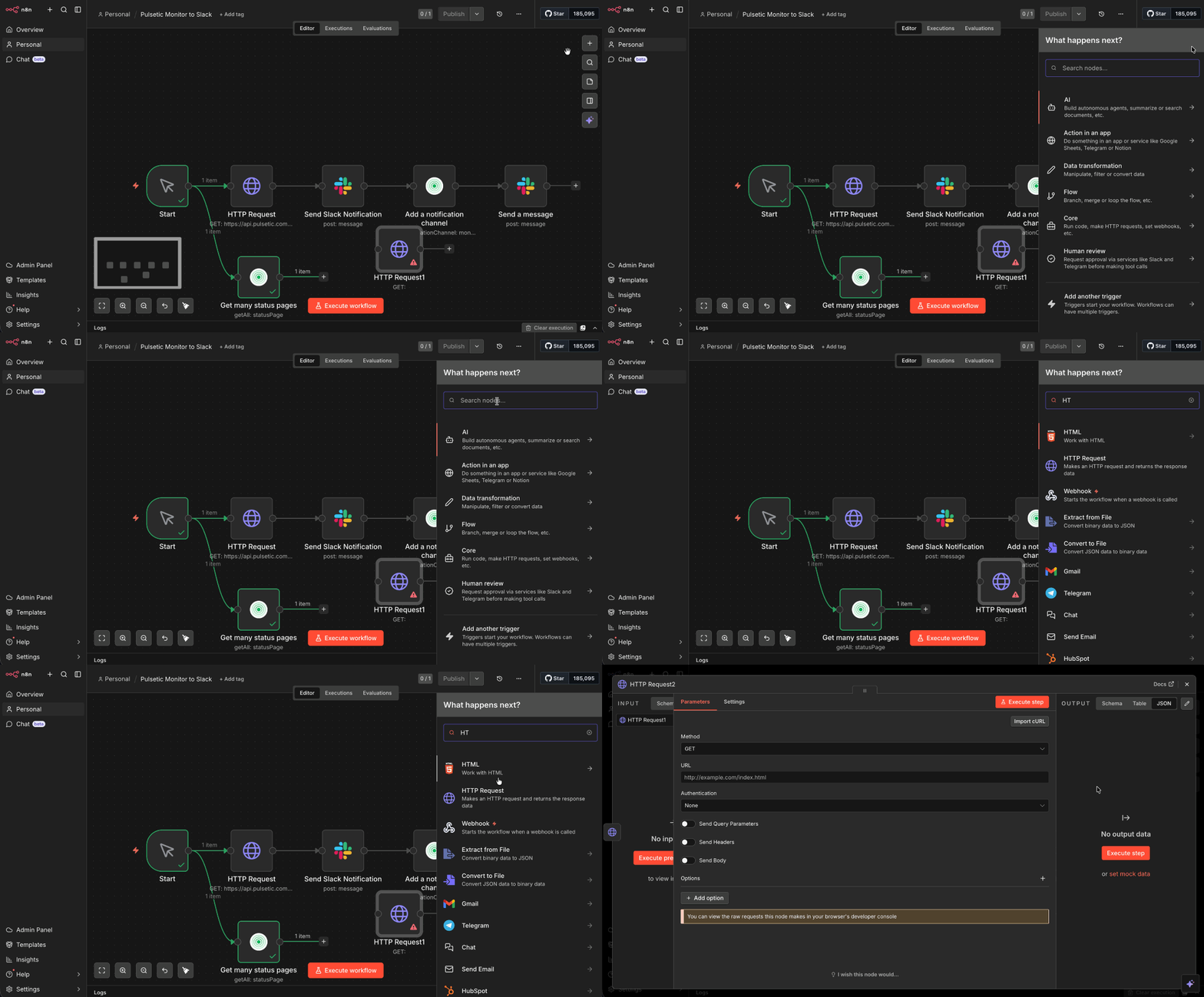
Open the Nodes panel, search for "HTTP Request", and select it.
-
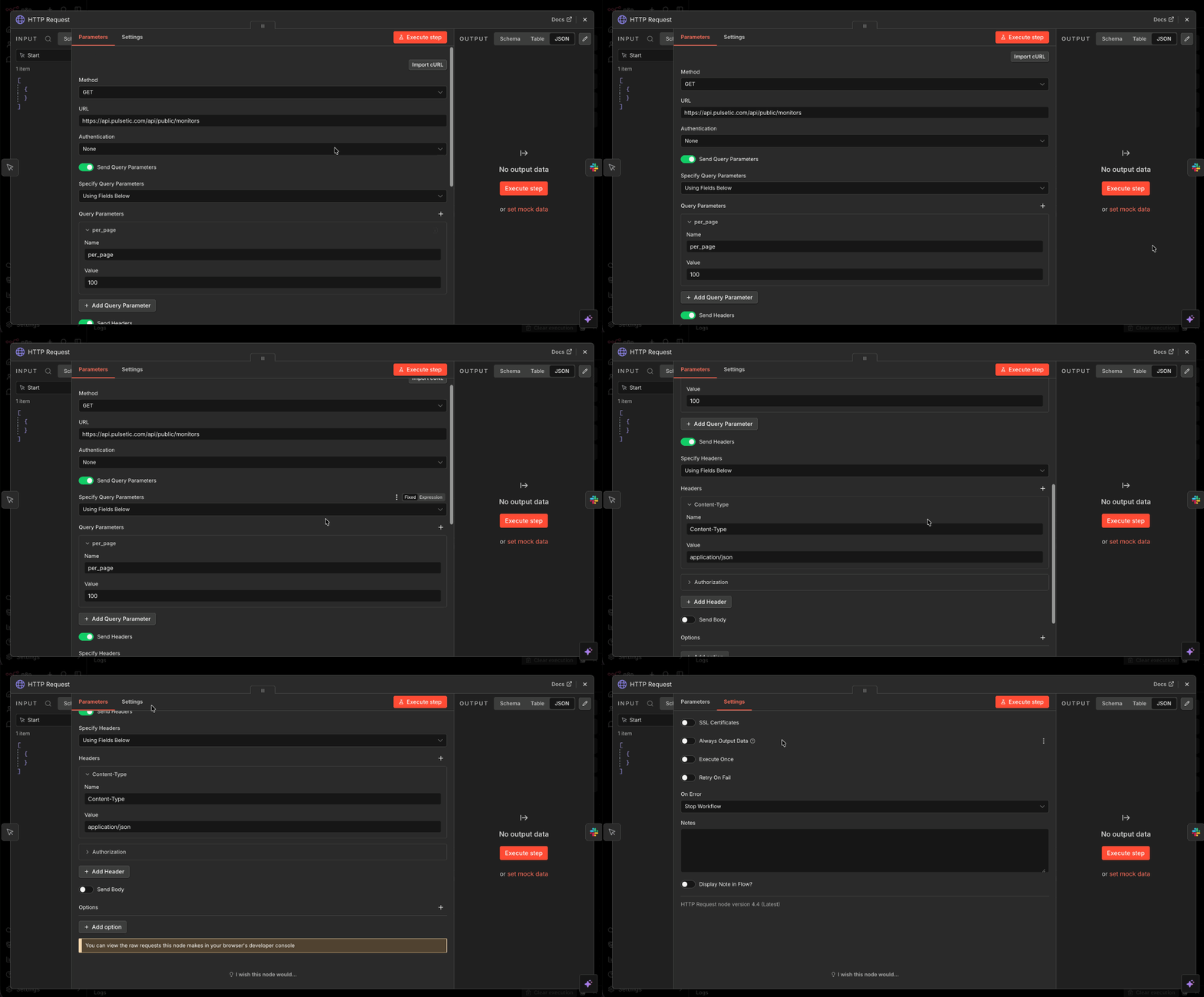
In the Settings, select your HTTP method (like GET or POST). For the URL and other fields, set it according to the Pulsetic API documentation. Then, execute the call exactly how your system requires.
Which Setup Should You Choose?
| Feature | Option 1: Community Node | Option 2: HTTP Request Node |
| Ease of Use | Very easy with dropdown lists | Requires basic API knowledge |
| Setup Time | A few seconds | A few minutes |
| Flexibility | Set to the provided options | 100% customizable |
| Best For | Non-technical users and quick setups | Developers and complex workflows |
What Can You Do With This Integration?
Connecting Pulsetic to the massive library of apps in n8n opens up some amazing possibilities for both operations and engineering.
- Smart Alert Routing: Instead of just getting a generic email, n8n can route alerts based on the severity of the problem. It can send a general Slack message to the marketing team and simultaneously text the on-call developer directly through Twilio.
- Automated Bug Tracking: When Pulsetic detects a drop in performance, n8n can instantly generate a new bug ticket in Jira or Linear. It can automatically attach the exact time, server details, and error logs so the engineering team can start debugging immediately.
- Uptime Reporting: For the business side, you can automate a weekly data pull that grabs all your website health statistics and drops them directly into a Google Sheet or an executive dashboard.