
Pulsetic AI Assistant
Pulsetic AI is an assistant that knows your account. Instead of clicking through monitors, incidents and date ranges to answer a question, you can simply ask it. It reads your monitoring data, and it can make changes for you once you confirm them.
Pulsetic AI is available on all paid plans.
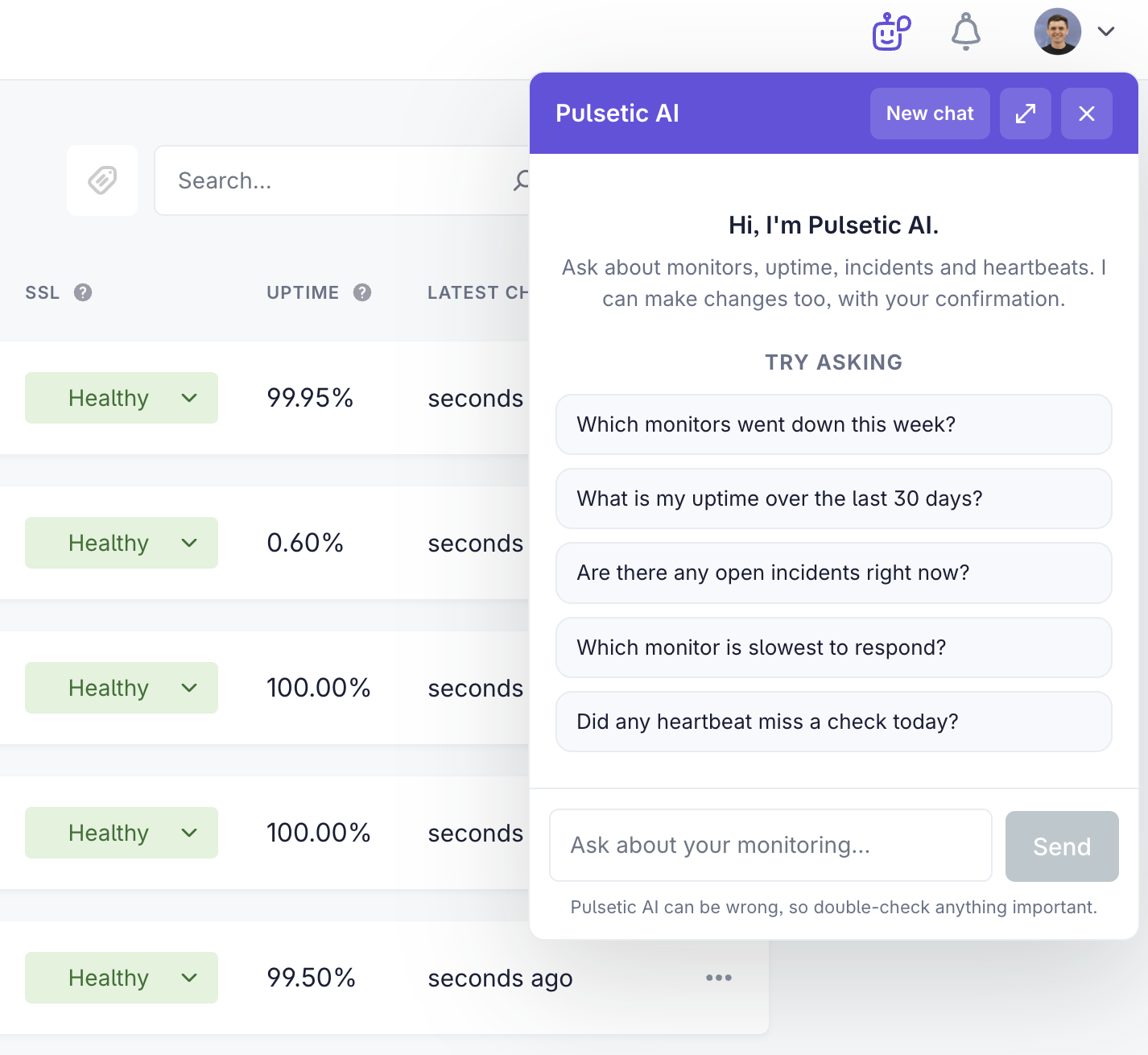
Step 1: Open the Assistant
Click the assistant icon in the top bar, next to the notifications bell. A chat panel opens.
- Drag the panel by its header to move it out of the way.
- Click the expand icon to double its size, which helps when a reply contains a wide table.
- Click New chat to start a fresh conversation.
The assistant remembers the current conversation as you go, so follow-up questions like "and the month before?" work as you would expect.
Step 2: Ask About Your Monitoring
Ask anything about your monitors, uptime, incidents and heartbeats. Some examples to get started:
- Which monitors went down this week?
- What is my uptime over the last 30 days?
- Are there any open incidents right now?
- Which monitor is slowest to respond?
- Did any heartbeat miss a check today?
You do not need to phrase things precisely. Ask the way you would ask a colleague.
Step 3: Let the Assistant Make Changes
Pulsetic AI can also act on your account: pausing a monitor, changing a check interval, updating alert settings and similar.
It never does this silently. When you ask for a change, the assistant shows you exactly what it proposes to do and then waits. Nothing happens until you click Confirm. Click Cancel and the change is dropped.
Read the summary before confirming, the same way you would review a change someone else made on your behalf.
Understanding Permissions and Replies
Pulsetic AI works with the data your role can already see. It does not grant anyone access they do not have.
Replies to longer questions arrive asynchronously. You can keep working in the dashboard while it thinks, and the answer will be waiting when you come back to the panel.
How to turn off Pulsetic AI
Pulsetic AI is optional. If you would rather not see it, or want to disable all AI features on Pulsetic, you can hide every AI feature from your dashboard with one setting.
To turn it off
- Go to Account → Profile.
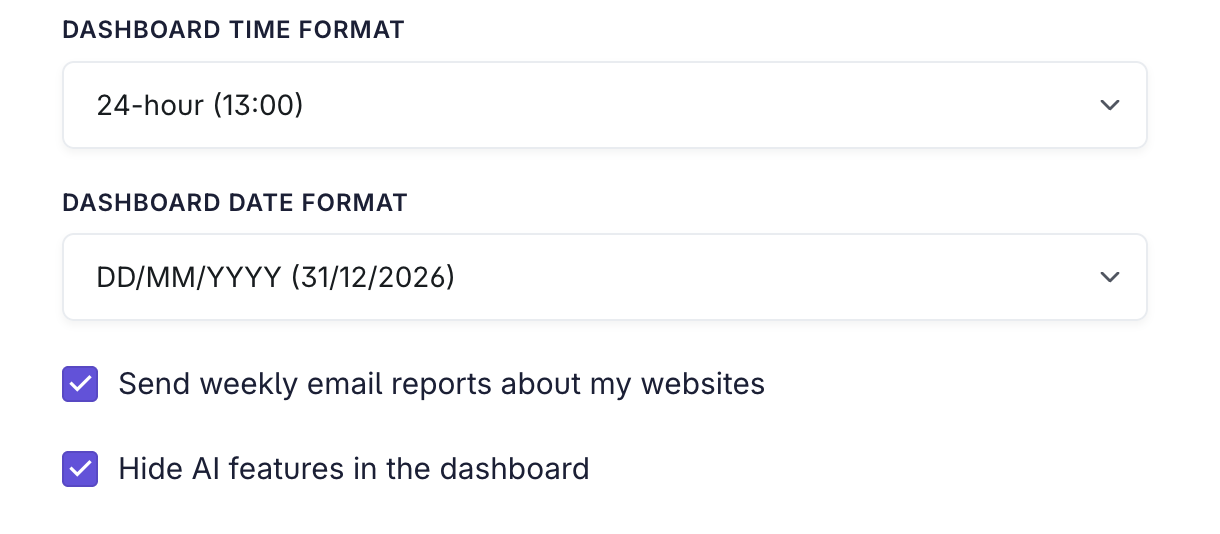
- Under Preferences, tick Hide AI features in the dashboard.
- Click Update to save.
What this hides
- The Pulsetic AI button in the top bar, and the chat panel it opens.
- The Rewrite with AI button in the status page incident and maintenance editors.
Good to know
- The setting applies to your user account only. Teammates keep their own preference, so turning it off for yourself does not turn it off for them.
- You can turn it back on at any time by unticking the same box.
- Pulsetic AI never changes anything in your account on its own. It asks you to confirm every change before it makes it.
Turning it back on
Go to Account → Profile, untick Hide AI features in the dashboard, and click Update.