
How to Customize Your Status Page Email Templates
When a service goes down or scheduled maintenance is about to begin, the first thing your users hear from you is an email. That makes your status page emails more than just automated messages—they're a direct reflection of your brand's reliability and professionalism. The Custom Emails feature in Pulsetic empowers you to take full control over these automated messages, allowing you to tailor the content, design, and tone to match your brand perfectly.
Whether you are asking a user to verify their subscription or alerting them to a critical outage, customizing your email templates ensures your messaging is clear, professional, and instantly recognizable to your audience.
Before You Start: Enable Email Integration
Custom emails only work if email integration is enabled on your status page. If you haven't set this up yet, refer to Setting Up Custom Email Sender for Status Page for a step-by-step walkthrough before continuing.
Once your email integration is active, you're ready to customize your templates.
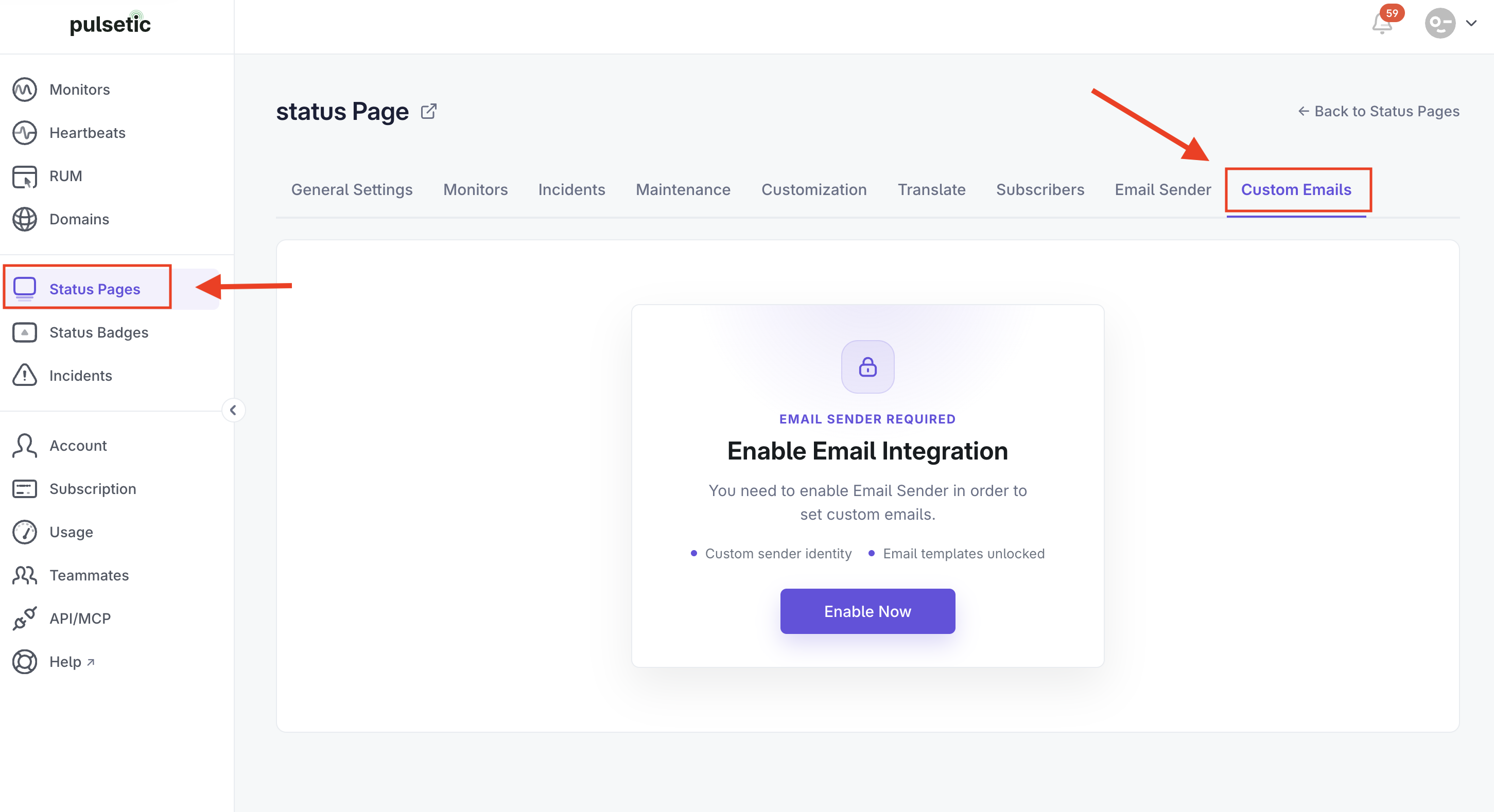
Step 1: Select Your Email Template
Pulsetic lets you customize six different automated email types, each triggered by a specific event on your status page. To get started:
- In your Pulsetic dashboard, navigate to Status Pages.
- Click on the specific status page you want to manage.
- In the top navigation menu, select the Custom Emails tab.
- Open the Template dropdown and choose the email template you'd like to edit.
| Template | When It's Sent |
|---|---|
| New Incident | Immediately when a new incident is reported |
| Incident Update | When you post a new update to an ongoing incident |
| New Maintenance | When a future maintenance window is scheduled |
| Maintenance Finished | When a maintenance window has been completed |
| Manage Subscription | When a subscriber requests to update their notification preferences |
| Verify Email | When a new subscriber needs to confirm their email address |
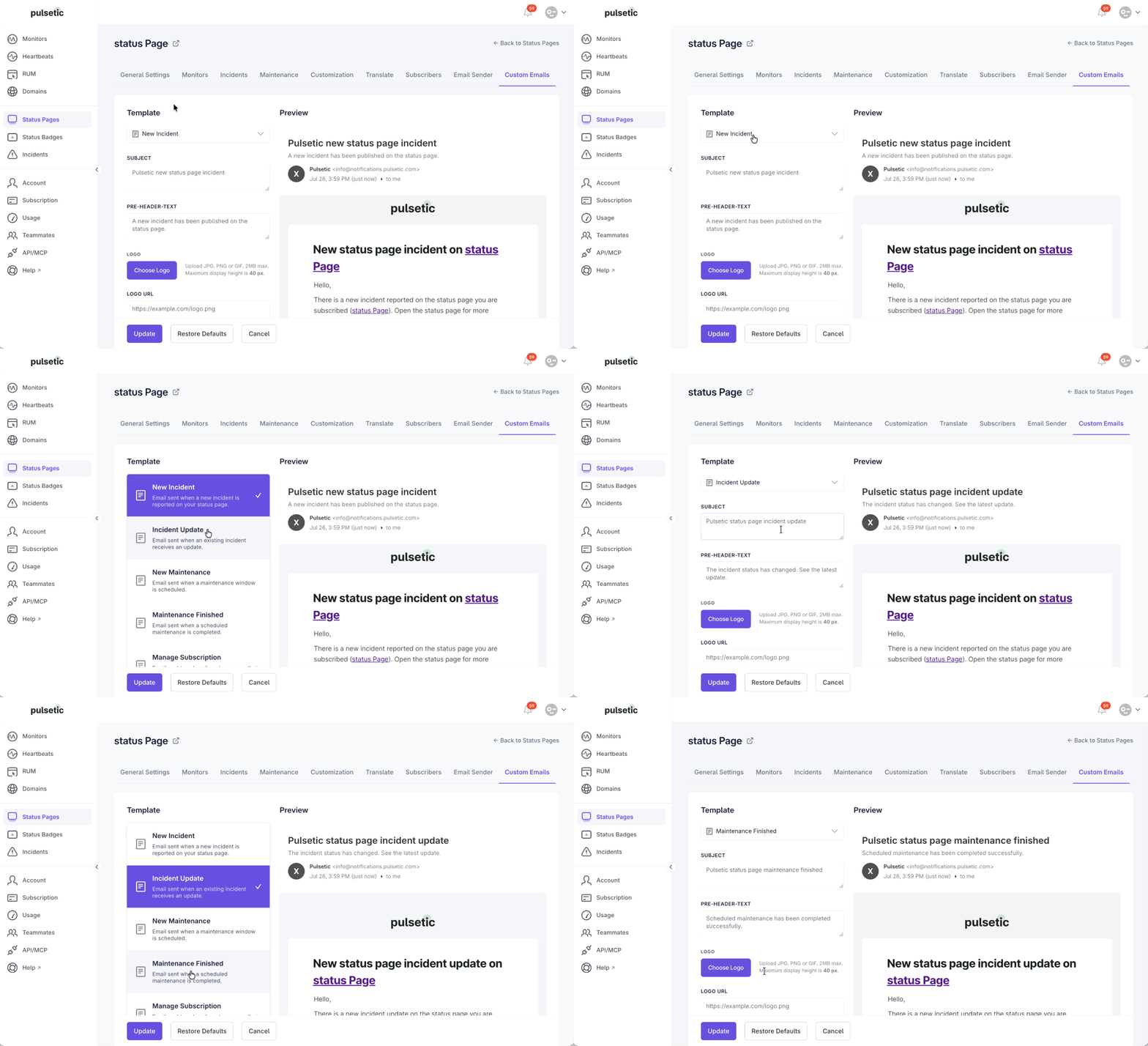
Step 2: Customize the Content and Design
Once a template is selected, you can modify the text and visual elements using the provided fields to match your company's identity.
Here's a breakdown of each section:
- Header & Branding
- Subject & Pre-Header Text: The subject is the first thing people see in their inbox. The pre-header text is that little preview snippet right next to the subject line—use it to give your subscribers a quick idea of what’s inside before they even open the email.
- Logo: Click Choose Logo to upload your company’s logo (JPG, PNG, or GIF—max 2MB, up to 40px high). Need to change it later? Just hit Delete.
- Body Text & Links
- The Message: The New Incident Title is the headline of your email. The Greetings (Top) sets the opening line (for example, "Hi there,"), and the New Incident Text is the main message body. Both the title and body support the
{{statusPageTitle}}dynamic variable, which automatically inserts your status page name into the email. - Buttons: Use Button Text to give a clear call-to-action (like "View Incident"). You can easily match your brand by setting the Button Color and Button Text Color with a HEX code or the color picker.
- URL: Add the Status Page URL Text as the clickable link that directs subscribers to your live status page — it supports the
{{statusPageUrl}}variable to automatically populate the correct URL.
- The Message: The New Incident Title is the headline of your email. The Greetings (Top) sets the opening line (for example, "Hi there,"), and the New Incident Text is the main message body. Both the title and body support the
- Footer
- Sign-off: Greetings (Bottom) is your closing line (e.g., "Thanks for your patience,"). Name (Bottom) and Sent By let them know exactly who the message is from (e.g., "The Support Team").
- Contact & Compliance: Be sure to add a Contact email or link so users know where to reach out with questions. Lastly, drop in your company's physical Address to stay compliant with anti-spam laws like CAN-SPAM and GDPR.
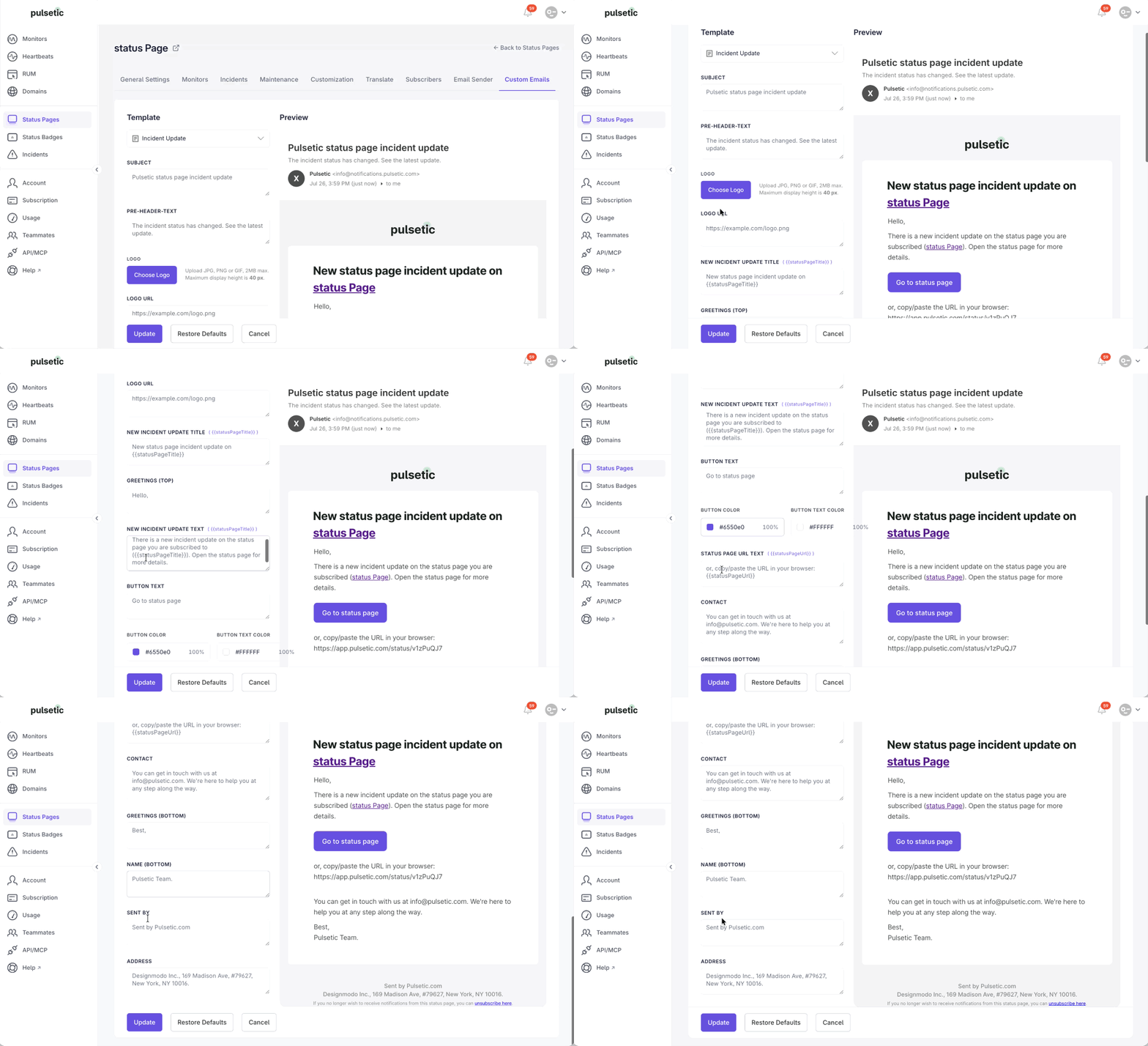
Step 3: Preview and Save
As you make changes, Pulsetic generates a real-time preview of how your email will look in a subscriber's inbox so you can verify your design before it sends.
- Navigate to the Preview section at the right side of the page.
- Review the layout to ensure your logo is sized correctly, your brand colors look good, and there are no typos.
- The preview displays the simulated sender details, including the subject, pre-header, sender, date, and the finalized email body.
- Once you are satisfied, save your changes and repeat the process for the remaining templates.