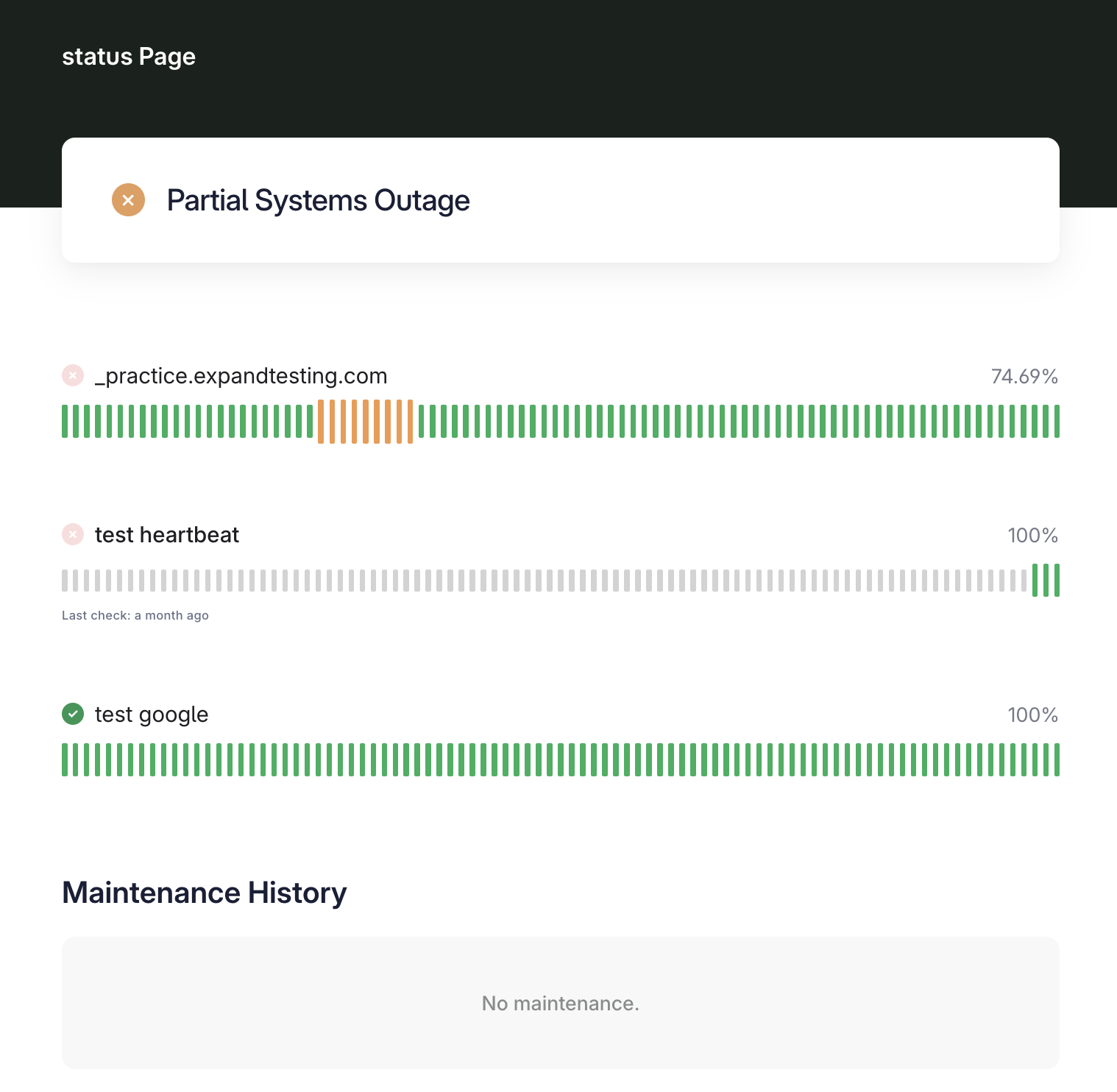
How to Add a Heartbeat to Your Status Page
Adding Heartbeats to your status page is a fantastic way to build trust with your users. While standard monitors prove your website is online, displaying your Heartbeats proves that your critical behind-the-scenes work — like daily database backups, API data syncs, and background workers — is running exactly on schedule.
Note:
Before you begin, you must have an active Heartbeat monitor running in your account. If you haven't created one yet, please complete that first by following our guide: Set Up a Heartbeat Monitor
Step-by-Step Tutorial
-
From your main dashboard, click on Status Pages in the left-hand navigation menu.
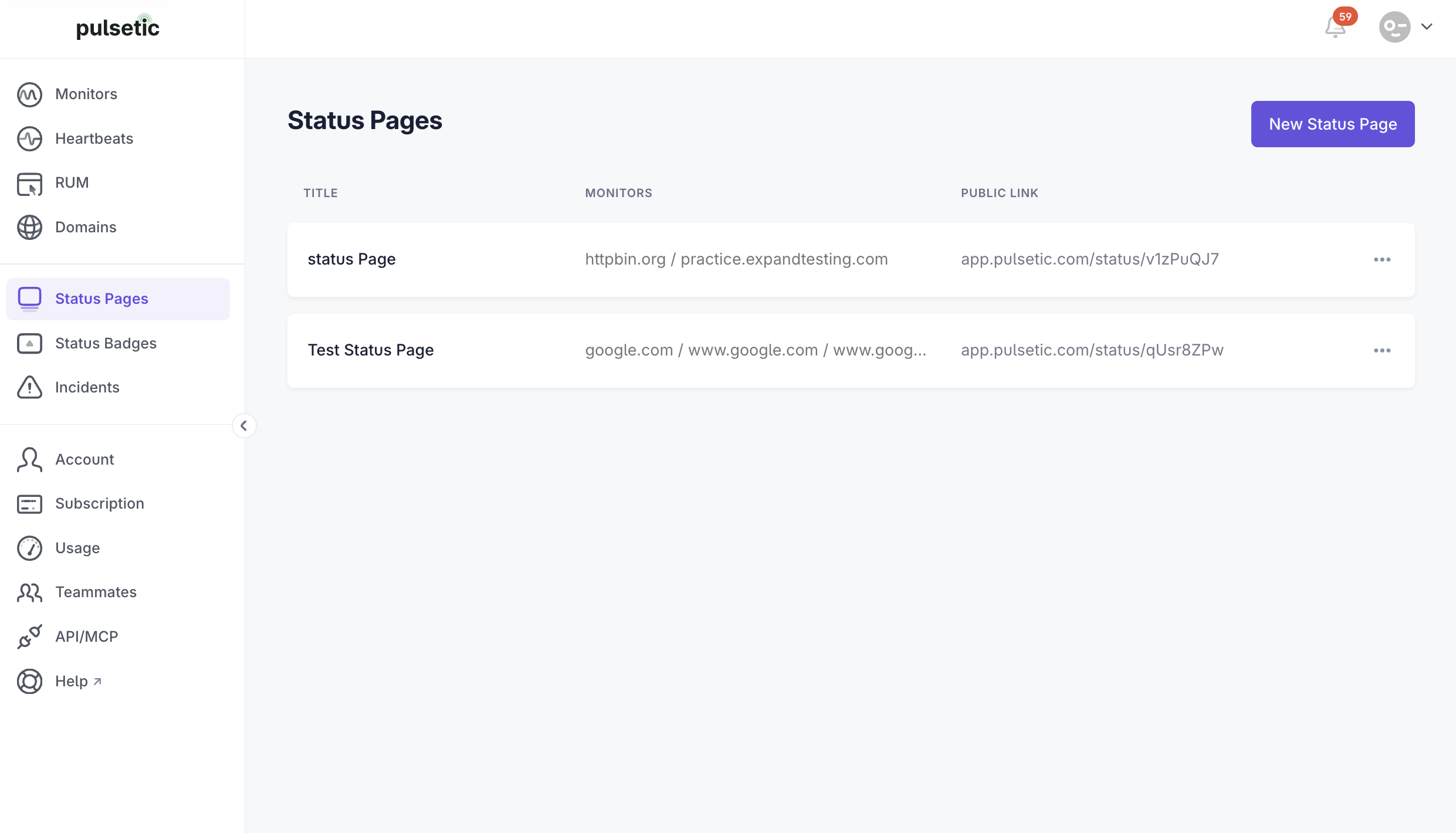
- Select the name of the specific status page you want to update.
-
Inside your status page settings, look at the top navigation bar and click on the Monitors tab to access your layout configuration.
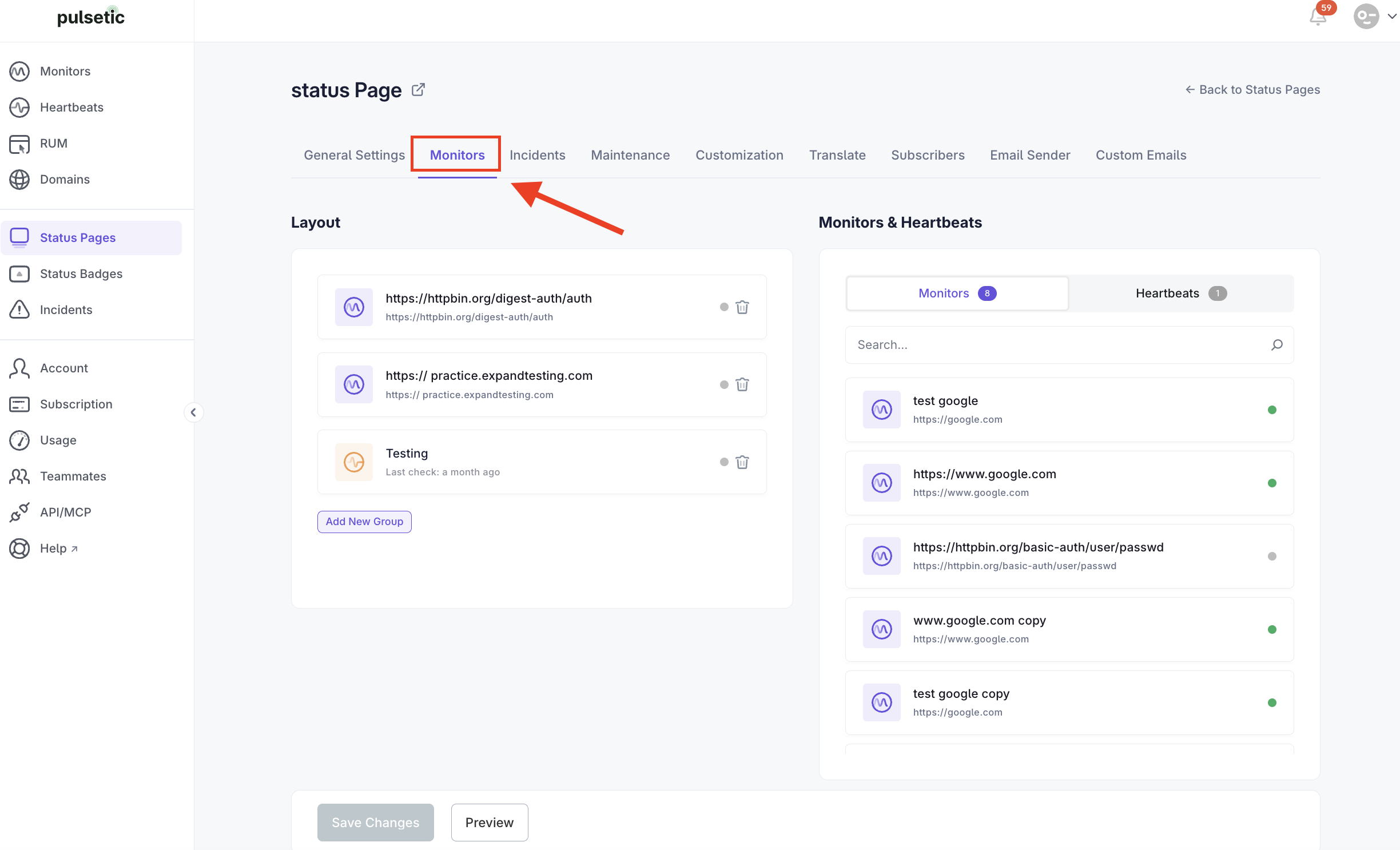
-
Navigate to the Monitors & Heartbeats section. By default, this area displays your standard external monitors. Click the Heartbeats tab to switch your view to your scheduled tasks.
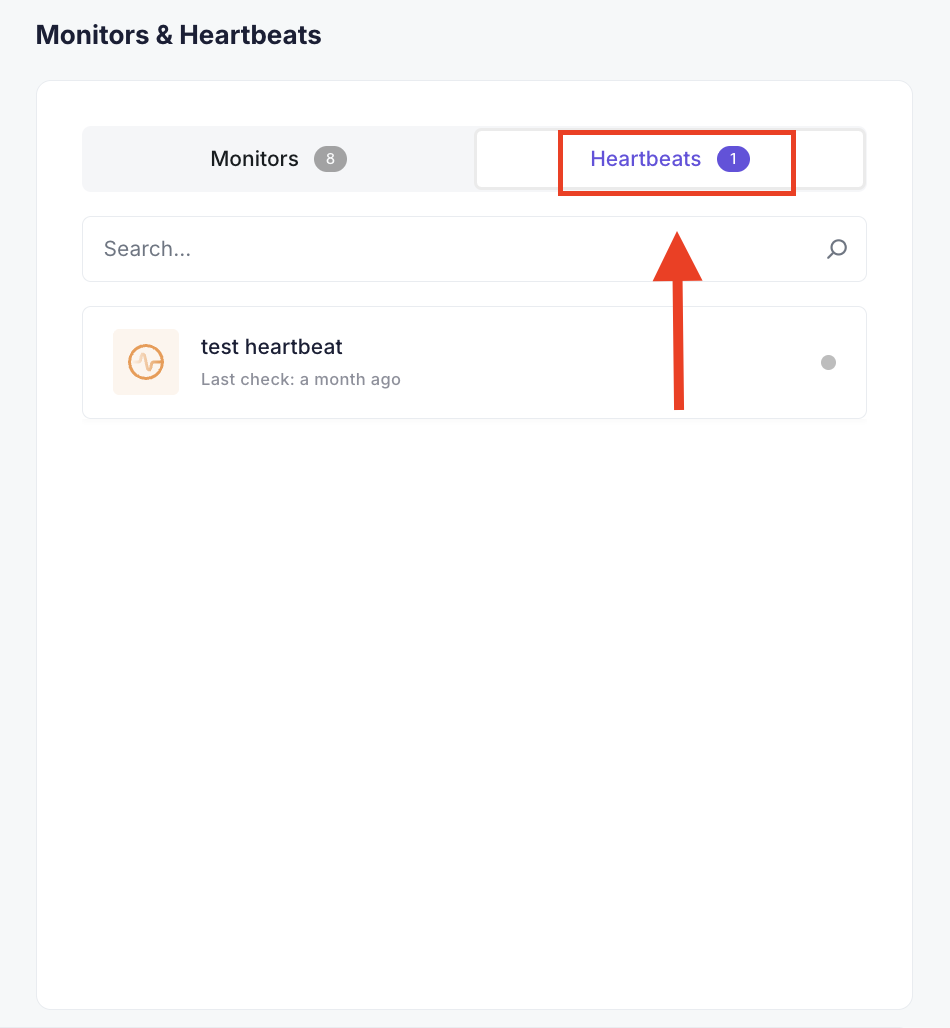
- Click on the specific Heartbeat you want to display. Once selected, it will instantly be added to the layout preview section of your status page.
- Click the Save Changes button to finalize the update. Your live status page will now publicly display the uptime and operational status (Operational, Degraded, or Down) of your background job.